Image Resizer Pro
Resize PNG, JPG and WebP images for YouTube, Instagram, Facebook, TikTok and LinkedIn. Choose from 15+ presets or custom dimensions, preview the result, and download — all in your browser.
Drop image or click to browse
PNG, JPG, WebP • Resize for any platform
All processing happens locally — your images never leave your device.
How to Use Image Resizer Pro
Upload Your Image
Click the dashed area or drag & drop a JPG, PNG or WebP file. It stays on your device.
Pick a Size
Choose a platform preset or type custom width & height. The preview updates instantly.
Choose Fit Mode
Cover crops edges, Contain shows the whole image, Crop lets you drag to reposition.
Download & Continue
Save as JPG, PNG or WebP. Use "Load Another Image" to process a batch with the same settings.
The image fills the entire frame. Parts outside the target shape are cropped. Best for thumbnails, banners and profile pictures where no empty space should show.
The whole image is visible and centered. Empty space fills the sides or top/bottom. Best for logos, product shots, or when nothing can be cut off.
The image stays at full size and you drag to pick which area shows inside the frame. Use this when you need precise control over what's centered.
100% Private & Secure: Images are processed directly in your browser. No upload to any server — your data stays with you.
Why Image Size Actually Matters
Most people don't realize how much a wrongly sized image costs them. YouTube compresses thumbnails that aren't 1280×720. Instagram silently crops portraits that fall outside its 4:5 ratio. LinkedIn shrinks link previews that don't hit 1200×627 — and suddenly your carefully designed graphic looks like a blurry afterthought.
It's not about being pixel-perfect for the sake of it. It's about making sure what you created actually looks the way you intended when someone sees it. That's the whole point of this tool — no guessing, no trial and error, just the right size, right away.
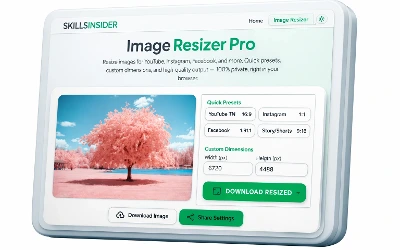
Works on desktop, tablet, and mobile.
What a Badly Sized Image Actually Costs You
This isn't a cosmetic problem. For anyone running ads, selling online, or posting for a client, the wrong dimensions translate directly into lost money and lost time.
A cropped ad still gets billed
Meta and Google Ads run a submitted image even if the platform auto-crops the important part out of frame. You're paying full CPM for an ad that's showing the wrong thing.
Off-ratio posts reach fewer people
Instagram and LinkedIn favor posts that render cleanly in their native ratio. A stretched image reads as lower quality and tends to get less reach.
One blurry thumbnail undercuts your work
If you're delivering social graphics for a client, one blurry upscaled asset is often what they remember, regardless of how good the rest were.
Getting it right once beats re-exporting later
Finding out after publishing that a banner got cropped means going back into your design file, re-exporting, and re-uploading — time a correct preset would have avoided.
Frequently Asked Questions
PNG — lossless, supports transparency. Best for logos and graphics.
WebP — modern format, roughly 25–35% smaller than JPG at the same visible quality. Best for web use when browser support is guaranteed.
Explore More Tools
Resizer, Compressor & Converter
General resizing, compressing, format conversion and batch ZIP export.
Image Cropper
Crop images with precision, no design software needed.
Background Remover
Strip the background from any product photo or headshot.
Image to PDF
Combine photos into a single shareable PDF document.
Border Pro
Add borders, neon glow and corner rounding to any image.