
Photopea Review 2026
Is Photopea still the best free online Photoshop alternative in 2026?
Photopea Overview 2026
Photopea is the leading free online Photoshop alternative in 2026 — a full-featured photo editor that runs entirely in your browser. It supports PSD, AI, XD, Sketch, RAW, XCF, and many other formats with layers, masks, smart objects, filters, adjustments, text tools, and advanced retouching — all without downloading or installing anything.
In this updated Photopea review for 2026, we cover real user experience, the latest features (improved performance, AI tools, better PSD support), pros and cons, pricing (still 100% free), who it's best for, and the strongest alternatives depending on your needs (free vs pro, online vs desktop).
Key Features of Photopea in 2026
Full PSD & Layer Support
Open, edit, save complex PSD files with layers, masks, smart objects, blending modes, and layer styles — almost identical to Photoshop.
Advanced Editing Tools
Healing brush, clone stamp, dodge/burn, pen tool, selections, filters, adjustments, and vector shapes — everything pros need.
AI-Powered Tools
Background removal, object selection, generative fill (limited), and auto-enhance — improving every year.
Cross-Platform & No Install
Works on any device with a browser (Windows, Mac, Linux, Chromebook, tablet) — no download required.
Export Options
Export to PSD, PNG, JPG, SVG, PDF, WEBP, GIF — with precise quality control.
Photopea Pros 2026
- 100% free — no ads in core experience
- Extremely close to Photoshop UI & shortcuts
- Excellent PSD compatibility & layer support
- Works offline after first load
- Fast performance even on low-end devices
Photopea Cons 2026
- Optional ads (can be removed with Premium)
- No native desktop app (web only)
- Some advanced Photoshop plugins don't work
- AI features less powerful than Midjourney/Firefly
- Collaboration features very limited
Photopea Pricing 2026
Free Plan
Best for most users
- Unlimited editing
- Full PSD support
- All tools & filters
- Optional ads
Premium Plan
Best for heavy users
- No ads
- More storage & cloud saves
- Priority support
- Dark theme & custom UI
Premium is optional — 95% of users stay free. No feature lockouts.
Who Should Use Photopea in 2026?
Yes – Perfect for:
- Students, hobbyists & freelancers on a budget
- Users needing Photoshop features without paying
- Chromebook & tablet owners
- Quick edits without installing software
No – Consider alternatives if:
- You need full Adobe ecosystem integration
- You require advanced AI generation
- You work in large teams with real-time collaboration
- You need native desktop performance
Need a simpler Photo Editor? Use our Quick Photo Editor to edit any image instantly.
Launch ToolBest Photopea Alternatives 2026
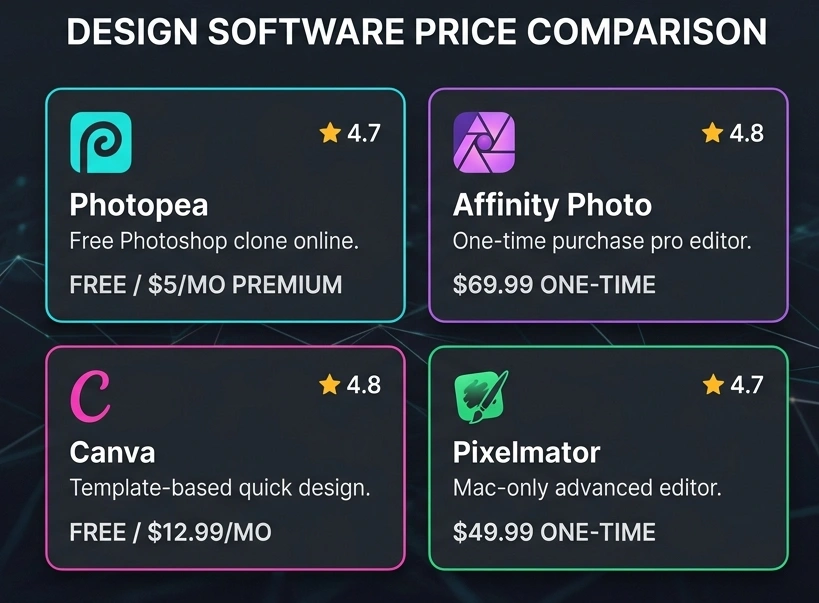
| Tool | Free Tier? | Best For | Rating | Starting Price |
|---|---|---|---|---|
| Photopea | Yes | Free Photoshop clone online | 4.7 | Free / $5/mo Premium |
| GIMP | Yes | Free desktop editor | 4.5 | Free |
| Affinity Photo | No | One-time purchase pro editor | 4.8 | $69.99 one-time |
| Canva | Yes | Template-based quick design | 4.8 | Free / $12.99/mo |
| Pixelmator Pro | No | Mac-only advanced editor | 4.7 | $49.99 one-time |
Photopea FAQ 2026
Yes — 100% free with full features, unlimited use, PSD support, layers, masks, filters — everything. Optional Premium ($5/mo) removes ads and adds cloud saves & priority support. No features are locked behind paywall.
Yes — excellent PSD compatibility. Open, edit, save complex layered PSDs with masks, smart objects, blending modes, text, and adjustments — one of the best free tools for PSD work.
Yes — after first load, Photopea works fully offline (cached in browser). Save files to your device. Internet only needed for updates, stock images, or Premium features.
Photopea wins for Photoshop-like interface, PSD support, and no install. GIMP is better for very large files, offline power users, and open-source customization. Most people prefer Photopea for quick edits.
Yes — no account required, no data collection beyond basic analytics, runs in browser sandbox. Developed since 2013 by one person (Ivan Kuckir) — very trusted in design communities.
Yes — basic AI: background removal, object selection, auto-enhance. Not as advanced as Midjourney or Firefly, but good enough for quick edits. More AI tools added yearly.
Ready to Edit Like Photoshop — For Free?
Photopea gives you professional photo editing power in your browser with no cost in 2026. Try it today.
Open Photopea NowStill looking for options? Our Quick Photo Editor is 100% browser-based and free.
Try it Now(Affiliate link – we may earn a commission at no extra cost to you)
See All Design Tools